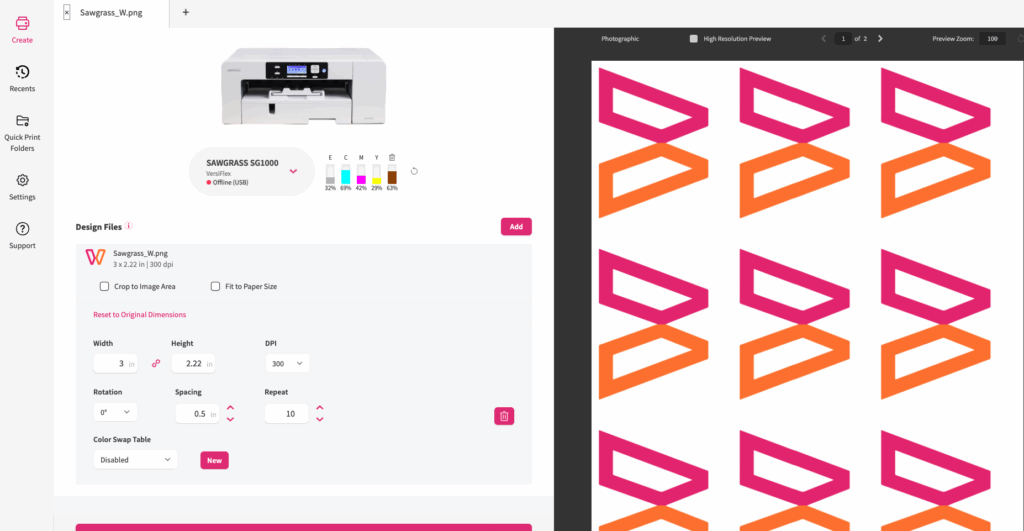
A strong Sawgrass Print Utility workflow helps you print faster, stay organized, and repeat successful jobs with confidence. Here we will cover best practices for organizing, importing, and reusing files in two key platforms:
- Sawgrass Print Utility (desktop app): your production control center
- My Sawgrass Design Tool (web-based): your design, templates, and file library
If you are comparing Sawgrass with maker printers like Epson, this is one of the biggest differences in day-to-day business use. Sawgrass is built around repeatable decoration workflows, so you spend less time rebuilding settings and more time producing sellable results.
Sawgrass Print Utility workflow tips that save time
Ultimately, your Sawgrass Print Utility workflow supports different production styles because everyone prints differently. The goal is simple: get files into production quickly with the right settings every time.
Use Create and Add File for ready-to-print art
Specifically, this is the simplest method when your art is already sized and print-ready:
- Click Create
- Click Add File
- Select one or multiple files to bring into a tab
Pro tip: Import multiple files at once. If they fit on the same sheet, arrange them together to conserve paper and ink. Think of each tab as one production job.
Best for: exported PNGs or finalized files from Illustrator, CorelDRAW, or other design software.
Why file naming matters
Print Utility displays your file name. In fact, generic names like “final” or “3” slow you down when you are busy.
Instead, use a consistent naming structure such as:
- Customer or project name
- Product type
- Quantity
- Date (optional)
Example: Smith_Family_15ozMug_2pcs_2026-01-05
Treat tabs like jobs and keep settings consistent
Remember: everything inside one tab should share the same core settings because the tab is one job.
For example, group items together when they match:
- Same product or substrate
- Same paper size
- Same color management needs
Example: If you are printing cotton shirts and some files are photo-heavy while others are simple graphics, separate tabs can help you keep output consistent.
Quick Print Folders for fast batch production
If you do repeat work or have multiple people running production, Quick Print Folders can be a major time saver.
Quick Print Folders let you:
- Create folders by product type or workflow
- Assign default settings per folder (substrate, paper size, mirror, printer, color management)
- Drop files in and open them with the right settings automatically
Smart folder setups:
- Ceramics 8.5×11
- Acrylic vivid
- 11×17 projects
- Uncoated wood tabloid
- Cotton photos
- Cotton graphics
Bonus controls: retention and automation
Additionally, quick Print Folders also help you control:
- Whether jobs are saved
- How often they delete
- Whether the folder is actively watching for files
Pause and Play tip: If you are not ready for files to open immediately, choose Pause. Files can sit in the folder until you hit Play.
Important: Anything added while a job tab is open will be added to that same job. If you want a fresh job, close the tab first.
Send to Sawgrass Print Utility for direct handoff from design programs
This method works like a virtual printer with preset settings.
Set it up in Print Utility:
- Choose substrate, paper size, and other settings
- Save the preset
Then in your design program:
- Go to File > Print
- Select Send to Sawgrass Print Utility
Your job opens in Print Utility with saved defaults applied.
Best for: teams that want a clean handoff from design to production without resetting options every time.
5) Use Recent Print Jobs to repeat best-sellers
If you repeat the same types of orders, Recents can save significant time.
When you reopen a recent job:
- Layout repeats, including multiples per page
- Settings repeat
- Production stays consistent
Note: Recents are stored locally on your computer and do not follow you to another machine.
My Sawgrass Design Tool organization tips
My Sawgrass Design Tool is web-based and ideal if you:
- Do not use another design program
- Want built-in templates so designs fit the correct size and shape
The most common confusion is where designs are stored. Here is the simple breakdown.
My Studio is what you saved
My Studio contains designs you created and clicked Save on.
From My Studio you can:
- Open in Designer to edit
- Manage post details
- Print and send to production
Important: Save overwrites the existing file. If you want a variation, use the Galleries approach below.
Galleries are your Save As system and your organization hub
Galleries help you:
- Create categories (mugs, ornaments, bags, notebooks, seasonal)
- Store reusable artwork
- Duplicate and repurpose designs without losing the original
Example workflow:
- Create an ornament design you love
- Place it onto a mug template
- Adjust it for the mug
- Save the new version into the correct gallery
Now you have:
- The original ornament design
- A new mug design based on the same artwork
Keep things searchable with naming conventions
Your naming system should match how you use the tool.
If you sell designs:
- Use searchable product-based names Example: Friends_15ozMug_Snowflake_Winter
If you fulfill customer orders:
- Use production-friendly names Example: Garcia_Mug_15oz_1pc_2026-01-05
Goal: find the right file fast without opening multiple designs.
The biggest workflow wins to implement this week
If you want a quick start list, begin here:
- Create Quick Print Folders for your top products
- Separate tabs by product, paper size, and color management needs
- Standardize file naming across your business
- Use Send to Sawgrass Print Utility if you design in other programs
- Use Recents for repeat jobs and best-sellers
- Organize My Sawgrass designs with Galleries so you can reuse artwork easily
Learn More
- Learn More About Sawgrass Print Utility
- Explore our Education Hub
- View Upcoming Workshops