Print Smarter, Faster, and With More Control
|
| | The sublimation printer software built to take friction out of your workflow, from setup to final print.
|
|
|
|
|
|
Sawgrass Print Utility (SPU) simplifies setup, streamlines preparation, and delivers reliable output every time you hit print. Here is a closer look at what makes Sawgrass Print Utility one of the most powerful sublimation design software platforms available to creators today.
|
|
|
|
|
|
| |
Smart Print Settings: Remove the Guesswork
|
|
|
|
|
| The result is a faster, more responsive print experience with lower system load and higher confidence in what lands on your substrate.
|
|
|
|
|
Choosing the right print settings for consistent, high-quality results is one of the trickier parts of sublimation printing. Smart Print Settings take that off your plate.
Smart Print Settings are presets that automatically apply the recommended configuration based on your product and material. With a single selection, Sawgrass Print Utility sets print quality, color handling, and mirroring for you.
|
|
|
|
|
“Reliable, high-quality output with less manual setup. Smart Print Settings help you reduce errors, save time, and print with confidence.”
– Pavlo, Software Engineer at Sawgrass
|
|
|
|
|
This works across both the Sublijet System and the VersiFlex System, giving you a consistent starting point for every job regardless of which Sawgrass system you are running.
You still have full control when you need it. Printing on a glass cutting board and want to turn mirroring off for reverse-side application? Easy adjustment. The presets are your reliable starting point, not a lock-in.
|
|
|
|
|
|
| |
Print Preview: Confirm Every Job at a Glance
|
|
|
|
|
| Catch issues before they become wasted prints and products. Reduce errors, save time, and move every job to press with confidence.
|
|
|
|
|
| |
|
| |
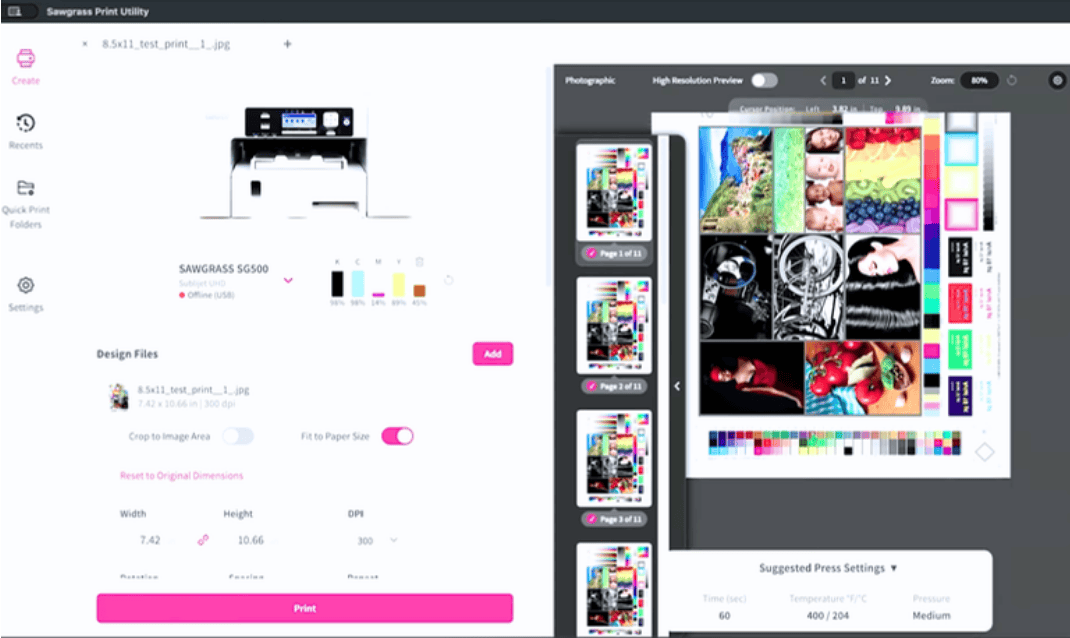
The updated print preview in Sawgrass Print Utility (SPU) gives you more visibility and control while keeping the interface clean and familiar. Watch how to use Print Preview in SPU to see it in action.
All in one screen, you can check layout, positioning, page selection, and press settings. The preview ruler shows you exact page size so you can confirm paper dimensions and design placement. Cursor position tracking shows you precisely where elements sit on the page.
|
|
|
|
|
“You can check key details at glance and move to print with confidence. Print preview helps you reduce errors, save time, and stay in control of your output.”
– Pavlo, Software Engineer at Sawgrass
|
|
|
|
|
Running a multi-page job? Page thumbnails let you scroll through the full set and select which pages to print or skip. Suggested press settings appear at the bottom of the preview with recommended configurations for your chosen product.
Need a different view? The settings menu lets you show or hide elements and adjust measurement units to suit how you work. Click the settings icon in the top right corner to customize.
|
|
|
|
|
| |
Custom Colors: Make Once, Reuse Everywhere
|
|
|
|
|
|
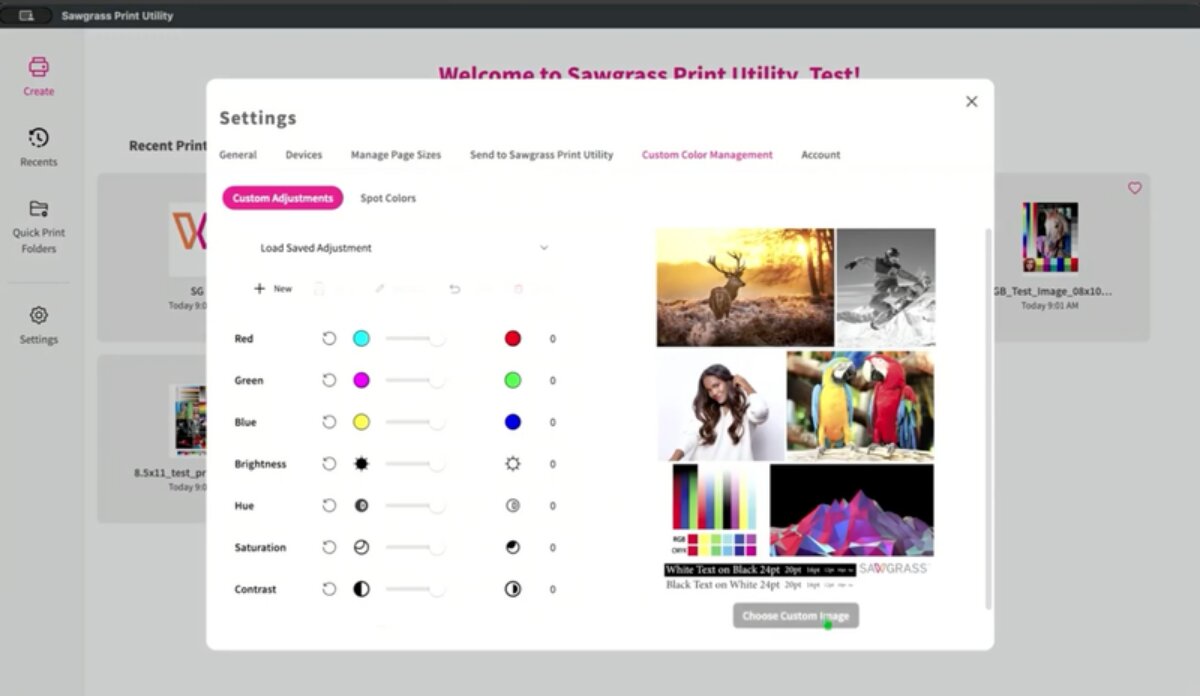
Custom Colors in Sawgrass Print Utility lets you create, save, and manage color settings without opening a new print tab every time. It is a faster, more efficient way to fine-tune color output and keep results consistent from job to job.
|
|
|
|
|
|
Open Custom Color Management In Three Steps
|
|
|
|
|
| | Go to Settings, then Custom Color Management.
|
|
|
|
|
|
| | Work from the default preview image, or load your own image to make adjustments against real artwork.
|
|
|
|
|
|
| | Save multiple adjustments and reuse existing ones as a starting point for new variations, so you are never building from scratch.
|
|
|
|
|
|
“The result is simple. You can fine-tune your color, save your preferred settings, and reuse them wherever you need them.”
– Pavlo, Software Engineer at Sawgrass
|
|
|
|
|
Once saved, your custom color adjustments are available across all Sawgrass Print Utility workflows. Use them when printing directly from a print tab, from a Quick Print folder, or through the Send to Sawgrass Print Utility virtual printer.
| Getting the right color often means making small adjustments. Saving those adjustments should not slow you down. Watch how to use Custom Colors in SPU to see how easy it is to manage.
|
|
|
|
|
|
| |
Why It Matters For Your Business
|
|
|
|
|
Every feature in Sawgrass Print Utility ladders up to the same goal: removing friction from your print process so you can focus on what actually grows your custom products business. consistency and repeatability are everything.
| Faster file processing. Smoother previews. Smarter presets. Reliable color. Lower system load. Sawgrass Print Utility is continuously evolving with ongoing improvements to performance, usability, and output quality, and this latest release delivers across every one of those fronts.
| It works seamlessly with the rest of the Sawgrass ecosystem too, including MySawgrass, our design platform with ready-to-use templates and resources to help you create faster.
| If you are already running a Sawgrass system, Sawgrass Print Utility is ready to make your day easier. If you are evaluating sublimation printing as a path for your business, Sawgrass Print Utility is one of the reasons Sawgrass customers print with confidence at every scale.
|
|
|
|
|
|
Check out our YouTube to become a Sawgrass Print Utility expert today!
|
| |
|
| |
| |